How to schedule your PeakDo DC port from iPhone
6 min read
The PeakDo Link-Power family supports up to six on-device schedules for the DC port. Set lights to come on at sunset, kill a heater overnight, cycle a router every Sunday at 3am — whatever rhythm your setup needs.
This is the step-by-step. Link-Power Companion is the native phone app — free on the App Store and Google Play.
What you can schedule
The Link-Power firmware exposes four schedule types:
- One-shot.Fires once at a specific date and time. Good for "turn the heater off at 10pm tonight, then forget it."
- Daily. Fires every day at the same time. Lights at sunset, off at midnight.
- Weekly. Pick days of the week. Cycle a router every Sunday at 3am.
- Monthly. Pick days of the month. Long-interval maintenance reboots.
Each schedule has an action: DC port On or Off. Most setups need both — one to turn something on, another to turn it off.
Setting up your first schedule
- Open Link-Power Companion. Connect to your device if it isn't already.
- On the dashboard, tap the DC Port card.
- Tap Schedules. You'll see existing schedules (if any) and a button to add a new one.
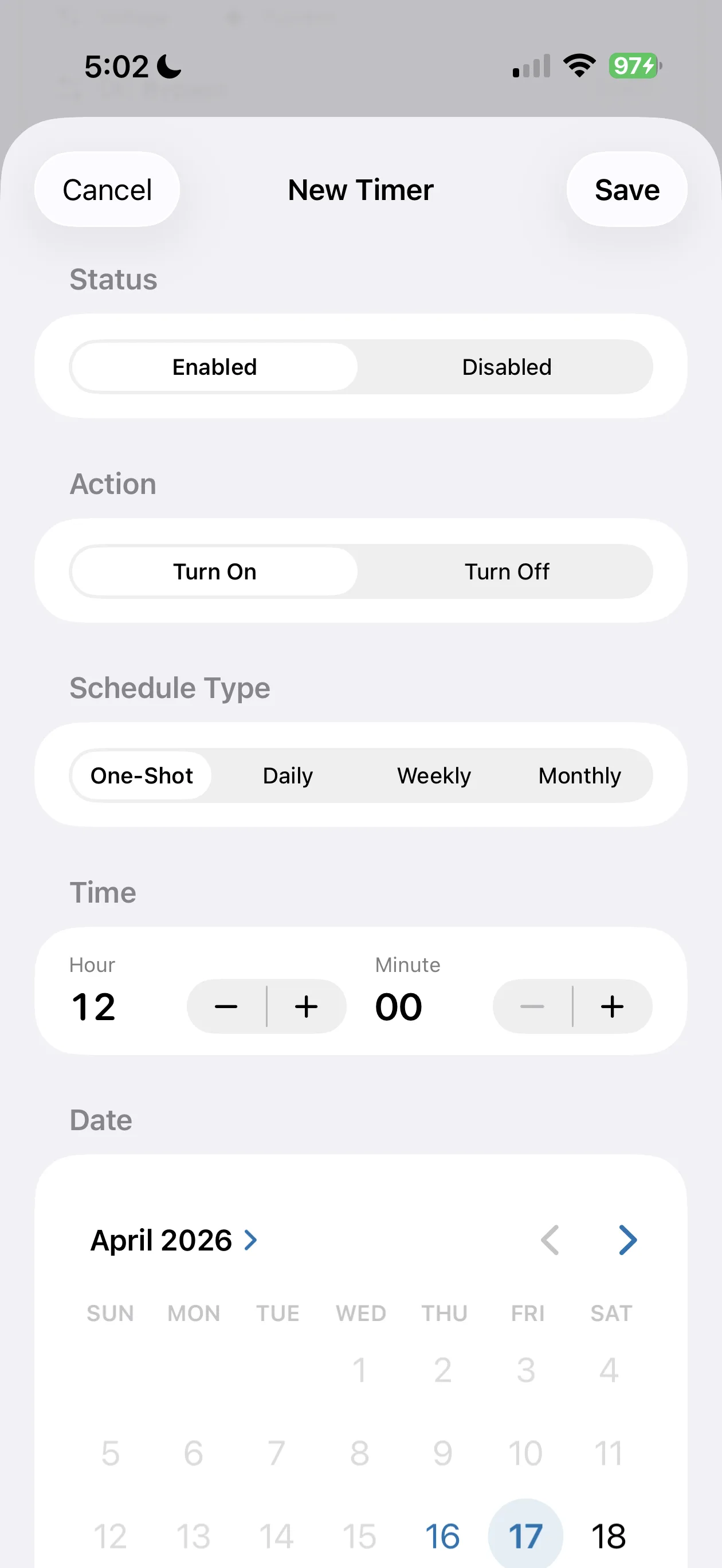
- Tap Add Schedule. Choose your schedule type (one-shot, daily, weekly, monthly).
- Set the time. For weekly schedules, pick the days. For monthly, pick the day numbers (1–31).
- Choose the action: DC port On or DC port Off.
- Tap Save. The schedule appears in the list with its next fire time.
Repeat for the off-schedule. Most use cases want a paired on-then-off. Daily lights, for example, are two schedules: on at 7pm daily, off at midnight daily.
Real-world recipes
Vanlife heater on a cold night
- One-shot, 10pm tonight, DC port On.
- One-shot, 6am tomorrow, DC port Off.
You wake up to a battery that hasn't drained dry, and a van that's been heated. The schedule executes whether or not your phone is connected.
Off-grid lighting
- Daily, sunset (e.g. 6:30pm), DC port On.
- Daily, midnight, DC port Off.
Tip: PeakDo doesn't support sunset/sunrise as keywords — you have to pick a literal time. Adjust seasonally if your latitude has dramatic day-length swings.
Weekly router reboot
- Weekly, Sunday 3am, DC port Off.
- Weekly, Sunday 3:05am, DC port On.
Five minutes of downtime, fully off-grid, every Sunday. Good hygiene if your router runs hot.
Starlink Mini overnight cutoff
- Daily, 11pm, DC port Off.
- Daily, 7am, DC port On.
Saves about 8 hours × ~30W = 240Wh of battery overnight on Starlink Mini. Combine with the Lock Screen widget for at-a-glance state.
Editing or deleting schedules
From the schedules list, swipe left on a schedule to delete, or tap it to edit. Changes sync to the device immediately over Bluetooth. The 6-timer limit is enforced at save time.
Edge cases worth knowing
Schedule conflicts. If two schedules fire at the same exact second, the firmware processes them in registration order. Avoid stacking conflicting On/Off events at the same minute.
Time zones.The Link-Power doesn't track timezone — it stores schedules as local time on the device, and the device clock is whatever you last synced from your phone. Open the app once after a timezone change to re-sync the device clock, otherwise schedules will fire at the old timezone's time.
Standby vs. on.Schedules wake the DC subsystem as needed; the device doesn't need to be "on" in any user-visible sense for schedules to fire.
Backup. Schedules are stored on the device. If you factory-reset, you lose them. Take a screenshot of your schedule list before any major maintenance.
Why schedule on the device, not on the phone
iOS doesn't reliably let third-party apps run in the background to fire scheduled BLE writes. Even if it did, you'd lose schedules when your phone is off, lost, or out of range.
By writing the schedule to the device once, the device's own micro-timer fires it independently. Your phone is the configuration tool, not a runtime dependency. This is one of the core reliability advantages over a Web App approach — schedules in the PWA depend on a browser tab being live, which is rarely the case.
Get the app
Scheduling is one of the features that genuinely changes how you use a portable power station. Five minutes to set up, then it runs forever.
Frequently asked questions
How many timers can I schedule?+
Up to 6 active timers per device. Each can be one-shot, daily, weekly, or monthly. The 6-timer limit is set by the Link-Power firmware, not the app.
Do schedules run when my phone is away?+
Yes. Schedules execute on the Link-Power device itself, not on your phone. Once you've sent a schedule via Bluetooth, your phone can be miles away — the timer still fires.
What does scheduling actually control?+
The DC port output. When the schedule fires 'on', DC port output is enabled. When it fires 'off', the DC port shuts down. The USB-C port is always-on by default and isn't affected by these schedules.
Can I schedule USB-C output?+
Not directly — the USB-C port doesn't support scheduling at the firmware level. You can set USB-C power limits and runtime caps, which provide some scheduled-like behavior. For automated USB-C control, run anything power-sensitive off the DC port instead.
Will scheduled changes wake my Link-Power from standby?+
Yes. The Link-Power firmware keeps a low-power timer running even when in standby. Scheduled events wake the relevant subsystems just for the duration of the change.